Free AI Video from PowerPoint: 40 Slides at No Cost — How It Works
By AiToVid Team
Most people have a folder full of presentations that never get seen again. A slide deck takes hours to build, gets shown once in a meeting, and then collects dust. Meanwhile, the same content — if turned into a video — could reach thousands of people on YouTube, LinkedIn, or a company intranet.
The problem is that converting a PowerPoint to video the traditional way is slow, expensive, or both. That changes with a free PowerPoint to video converter with AI. This guide walks through exactly how AiToVid works, what the free tier includes, and who gets the most out of it.
Table of Contents
- Why Converting PPT to Video Is Still Hard
- What AiToVid Actually Does
- How the Free Tier Works — 40 Slides, No Credit Card
- Step-by-Step: Converting Your PowerPoint to Video
- Who Benefits Most
- Frequently Asked Questions
- Ready to Try It Free?
Why Converting PPT to Video Is Still Hard
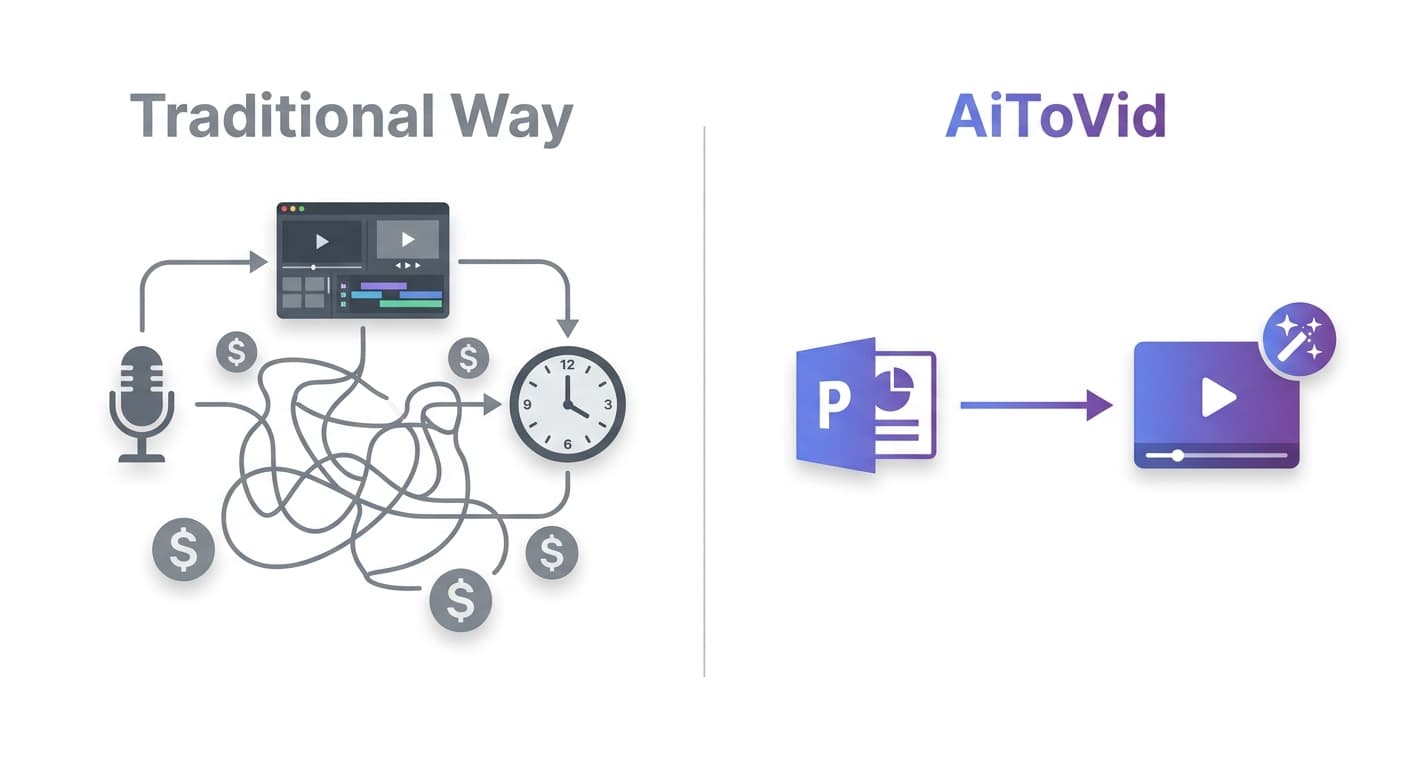
Recording yourself presenting is the obvious solution, but it comes with real friction. You need a microphone, a quiet room, video editing software, and enough time to re-record every time a slide changes. For a 20-slide deck, a single clean recording can take two or three hours.
Hiring a video production agency solves the quality problem but introduces a new one: cost. Even a basic corporate explainer video can run $500 to $5,000, and turnaround times are often measured in weeks.
Screen recording tools like Loom or Camtasia are cheaper, but they still require a live presenter and offer no automation. If you make a mistake midway through, you're starting over — or learning to edit audio.
The result is that most presentations never become videos. That's a missed opportunity, especially when video consistently drives higher engagement than static documents or slide exports.
What AiToVid Actually Does
AiToVid is an AI-powered presentation-to-video converter. You upload a PowerPoint file, and it handles the rest — script writing, voice narration, and video export — without you ever needing to open a microphone or a video editor.
Here is what happens under the hood:
AI Script Generation
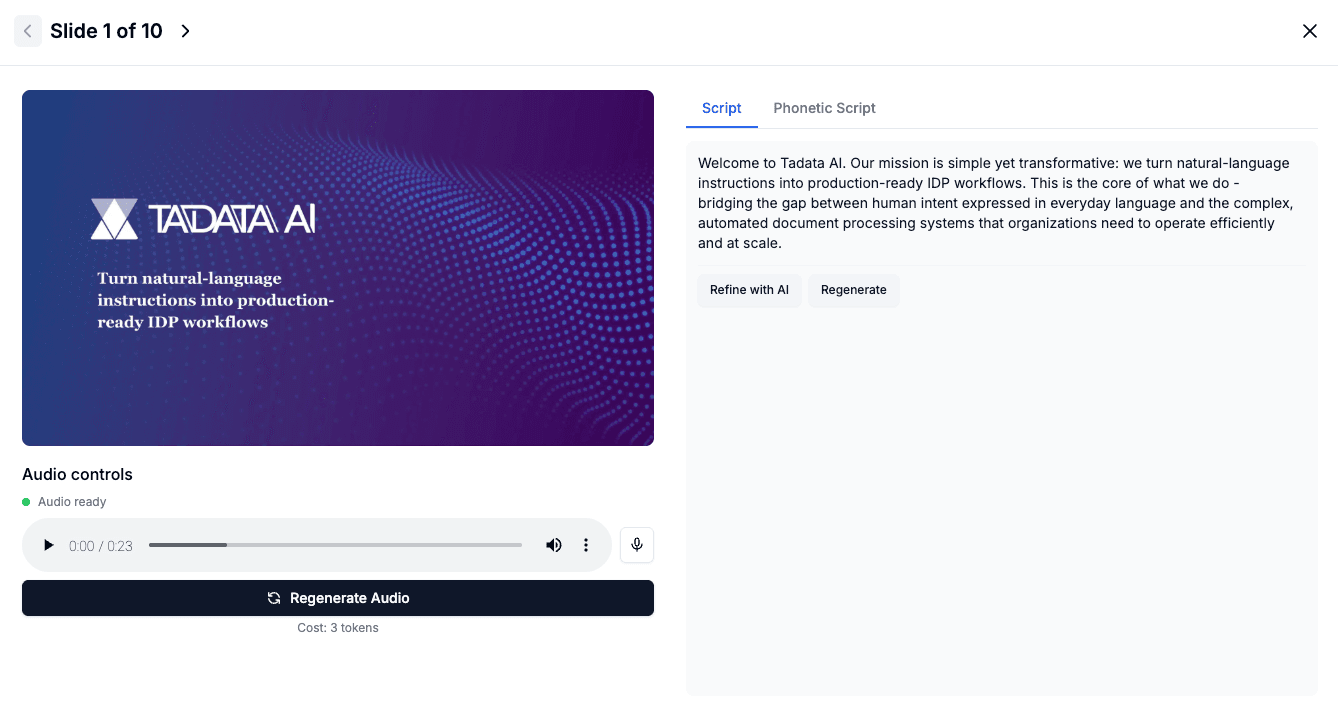
The AI reads the text and structure of each slide, then writes a narration script that sounds natural when spoken aloud. It does not just read bullet points verbatim. It interprets your content and rewrites it as spoken language — the kind of thing that takes a human writer significant time to do well.
Natural Voice Synthesis
The script is passed to a voice synthesis engine that generates audio that sounds like a professional human narrator, not a robotic text-to-speech system. You can choose from multiple voice styles depending on the tone you want — formal, conversational, or somewhere in between.
29-Language Support
AiToVid can narrate and dub your video in 29 languages. You upload one PowerPoint and can generate localized versions without re-recording anything. For businesses with international audiences — or educators teaching students in multiple regions — this removes a barrier that previously required professional translation and dubbing studios.
Script Editing
Before the video is generated, you can review and edit the AI-written script slide by slide. If the AI missed the point of a particular slide, or if you want to add emphasis, you can adjust the narration directly in the editor. This keeps you in control without requiring you to do all the writing yourself.
Professional Video Export
The final output is a properly formatted video file, ready to upload to YouTube, embed in a course platform, share on LinkedIn, or distribute through any channel that accepts standard video formats.
How the Free Tier Works — 40 Slides, No Credit Card
Most AI video tools follow one of two patterns: a short free trial that expires after a few days, or a "free plan" that produces watermarked, low-resolution output that is not usable in practice.
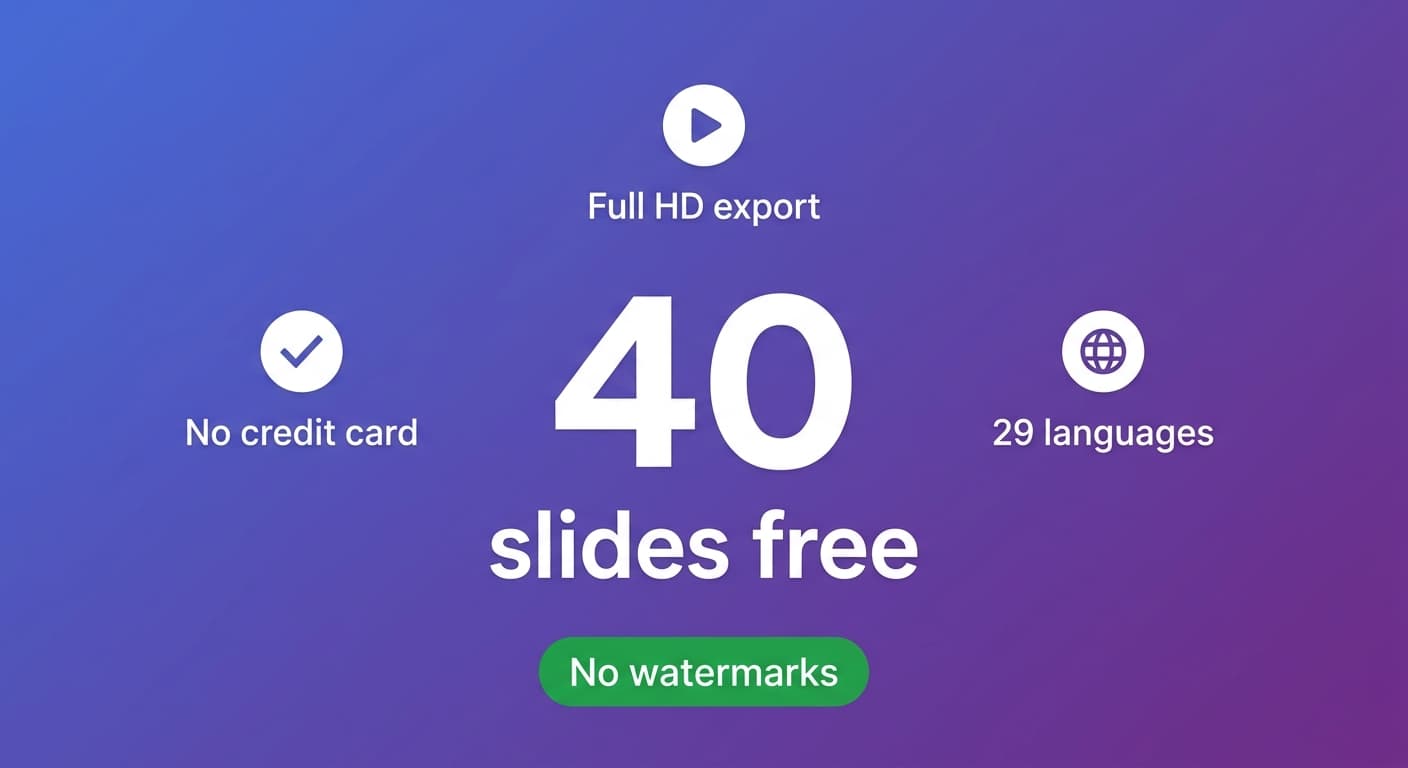
AiToVid takes a different approach. Every new account gets credits for the first 40 slides at no cost, and no credit card is required to get started.
Those credits are per account, not per project — so you can use them however you want:
- A single 40-slide course lecture — free
- Two 20-slide training modules — free
- Four 10-slide product demos — free
- Mix and match however you need
For most people evaluating the tool, 40 slides is more than enough to test it on a real project and see the quality of the output before deciding whether to upgrade.
The lack of a credit card requirement matters. It means you can test the tool on a real project, see the quality of the output, and decide whether to upgrade based on actual results rather than marketing promises.
Step-by-Step: Converting Your PowerPoint to Video
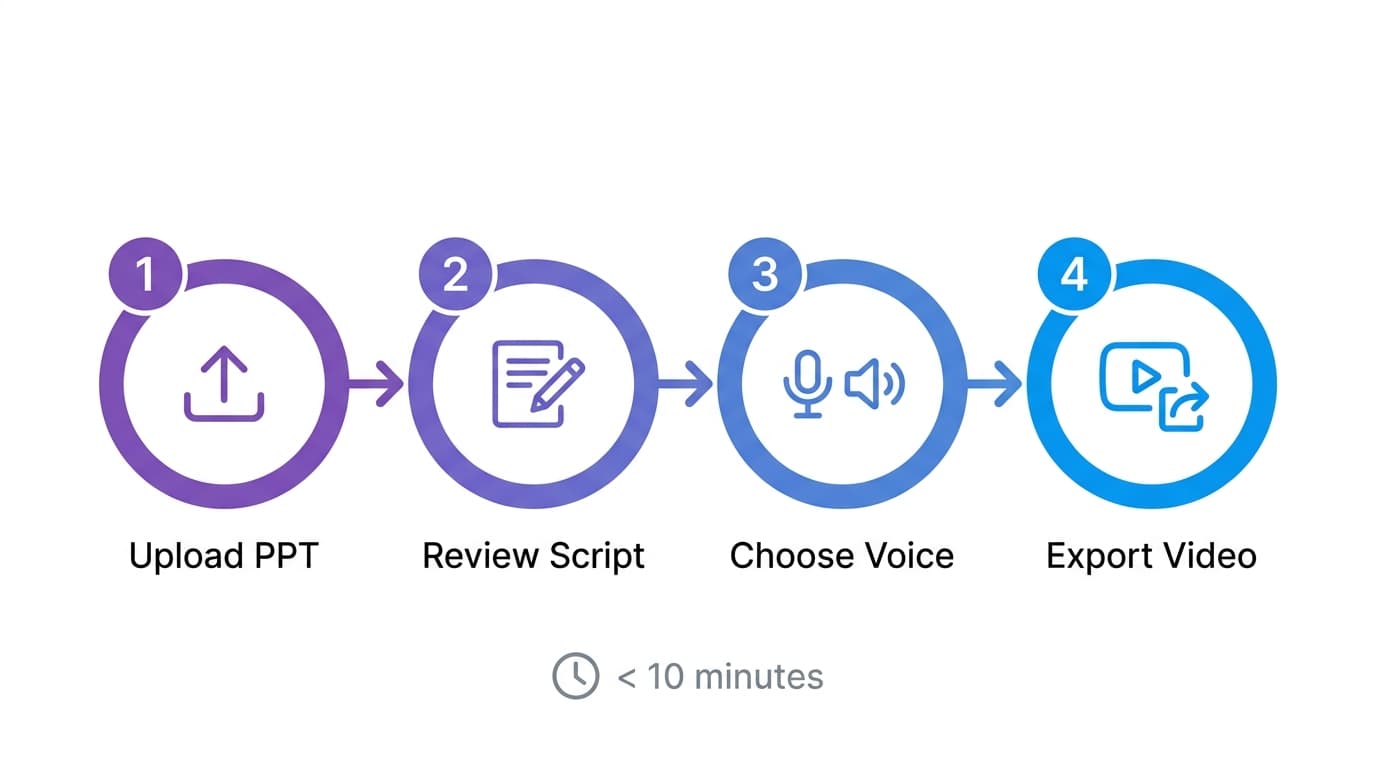
Here is the full process from upload to exported video.
Step 1: Upload Your PowerPoint File
Go to AiToVid and create a free account. Once you are in the dashboard, click to start a new project and upload your .pptx file. The uploader accepts standard PowerPoint format.
Tip: Clean up your slides before uploading. Remove speaker notes that are not relevant, and make sure slide titles are descriptive. The AI uses this structure when writing the narration script.
Step 2: Review the AI-Generated Script
After a few minutes of processing, AiToVid has a full narration script based on your slide content, displayed alongside each slide in the editor.
Read through it. Most of the time the output is solid, but you may want to adjust phrasing, add context that was not on the slide, or tighten a section that runs long. Make edits directly in the editor — changes are reflected in the final audio.
Step 3: Choose Your Voice and Language
Select a voice from the available options. If you are producing content for a non-English audience, choose the target language here. The AI will adapt the narration accordingly, producing natural-sounding speech in the selected language rather than a mechanical translation.
Step 4: Generate and Export the Video
Click to generate. AiToVid renders the video, syncing the AI-generated audio to each slide with appropriate timing. When it is done, you can preview the full video in the browser, then download the exported file.
Worth being clear about where the time actually goes. Your hands-on part is small: uploading takes seconds, and most of your involvement is reading through the script and deciding whether to change anything. Everything else is the machine working — script generation and audio generation each take a few minutes, and the final export scales with the size of your deck, so a long one takes a while. None of that needs you sitting there. Kick it off, go do something else, come back to a finished video.
Who Benefits Most
This kind of tool is not for everyone equally. Here are the groups that get the most value from a free AI-powered presentation-to-video converter.
Educators and Online Course Creators
Lecture slides become watchable video lessons. Instead of hosting a live session every time, record it once and distribute the video. Students can rewatch, pause, and learn at their own pace. The 29-language option is particularly useful for instructors serving international students.
Corporate Trainers and L&D Teams
Onboarding decks, compliance training, and product knowledge modules can be converted into videos that new hires watch on their own schedule. This reduces the time trainers spend repeating the same sessions and creates a consistent experience across locations.
Content Creators and Marketers
Repurpose existing slide content into LinkedIn video posts, YouTube explainers, or website embed videos. A well-structured deck you already have is the raw material for a video that performs well on social platforms.
Students and Researchers
Academic presentations, thesis defenses, and conference talks can be turned into shareable video files — useful for committees, advisors, or conference submission requirements that ask for a recorded presentation.
Small Business Owners
Product demos, investor pitches, and service overviews are all natural candidates for video conversion. The free tier makes this accessible without a production budget.
Frequently Asked Questions
Do I need to install any software? No. AiToVid runs entirely in the browser. Upload your file, edit the script, and download the video — no downloads or installs required.
What file formats are supported?
The uploader accepts .pptx files (standard PowerPoint format). If your presentation is in Google Slides or Keynote, export it to .pptx first.
How accurate is the AI-generated script? The AI performs well on slides with clear, structured text. For slides that are mostly visual — charts, images with minimal labels — the narration may need more manual editing. The script editor makes this easy to fix before generation.
Can I use the free video commercially? Yes. There are no watermarks on free-tier exports, and no restrictions on how you use the output.
What happens after I use my 40 free slides? Paid plans give you additional slide credits and unlock extra features. You can upgrade at any point from the dashboard.
Ready to Try It Free?
The fastest way to evaluate any tool is to test it on a real project. Take a presentation you already have — a training deck, a product overview, a course module — and run it through AiToVid at no cost.
You will have a finished, narrated video for a few minutes of actual work, with no credit card required and no watermarks on the output.
Convert your PowerPoint to video free at AiToVid →
Your first 40 slides are free. No credit card. No commitment.
Get more tips like this
Join the AiToVid newsletter for practical guides on turning presentations into videos — plus product updates and new feature demos.